Extracting data from documents into Excel
Reads invoices, contracts or reports and writes them as a table into the active sheet. Why you should create an empty sheet first.
Written By Logiks Solutions
Last updated 10 days ago
What this does
The Data Extractor reads documents – a single file or a whole folder – and writes a table into Excel from them. You say which details you need; each record found becomes a row, each detail a column.
The typical case: thirty invoices as PDFs, and you need date, vendor, invoice number and amount in one list.
Where to find it
Home tab ▸ Logiks AI Assistant group ▸ Task menu ▸ Analyze ▸ Data Extractor
First: an empty worksheet
The result goes into the active worksheet – whichever one is in front. If that sheet already contains something, the add-in asks you how to handle it, and one of the two answers overwrites content.
You can avoid that decision entirely by creating an empty sheet first and switching to it. Then there is no question and nothing can be lost.
The form points this out: "Results will be inserted into the active worksheet. Existing content may be overwritten after confirmation."
Which files can be read
.pdf, .docx, .doc, .txt, .rtf, .ini, .csv, .log, .json, .xml, .html, .ht
If you pick a folder, only its top level is read – subfolders are not included. The form shows you the number of files found.
Step by step: three invoices from one file
This is what a complete run looks like. The file test.txt contains three invoices; we want invoice number, invoice date and gross amount.
The screenshots in this article come from a German installation, so labels and column names appear in German there.
- Create a new, empty worksheet and switch to it.
- Open the Data Extractor: Home tab ▸ Logiks AI Assistant ▸ Task ▸ Analyze ▸ Data Extractor.
- Under Source, click File and pick the file. Its name appears below the field.
- Output language: the language you want the values in.
- Extraction instructions: Extract invoice number, invoice date and gross amount
- Output columns / schema:
InvoiceNumber;InvoiceDate;GrossAmount– the column names, separated by semicolons. - Click Extract data.
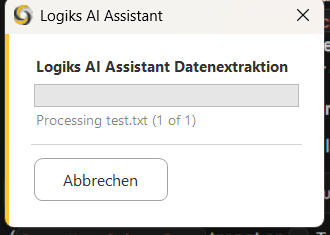
While it runs, a small window shows which file is being read, for example "Processing test.txt (1 of 1)". Cancel stops the run; you then get the message "No data extracted."
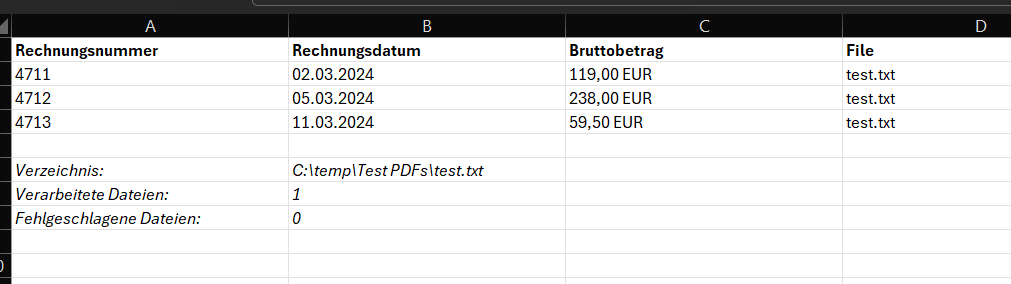
The result in the sheet: a header row with your column names plus a File column, one row per invoice below it – three rows here, even though it was a single file – and at the end the summary block with Directory, Files processed: 1 and Files failed: 0.
Filling in the form
The Extract data into Excel form has these fields:
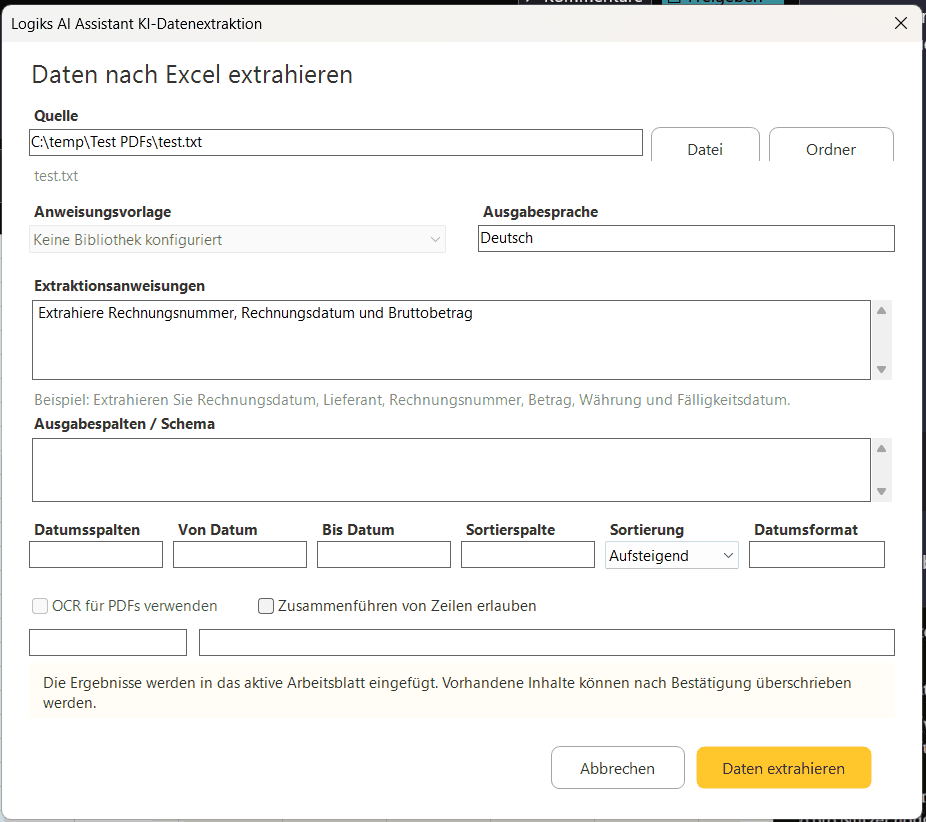
- Source – the File and Folder buttons. One of them has to be set.
- Instruction preset – a prepared instruction from the library. "No library configured" only means none is set up; you then write the instruction yourself.
- Output language – the language the extracted values should be in.
- Extraction instructions – the part that matters most. Describe in one sentence what you want pulled out, for example: Extract invoice date, vendor, invoice number, amount, currency, and payment due date.
- Output columns / schema – the columns of the target table, separated by semicolons, e.g.
InvoiceNumber;InvoiceDate;GrossAmount. We recommend filling it in: that way you decide the columns. Leave it empty and the AI proposes a schema and shows it to you for confirmation. - Date cols, From date, To date – which columns hold dates and, if you want, a period to filter on.
- Date format – how dates are written in the table.
- Sort col and Sort (ascending/descending) – what the finished table is sorted by.
- Use OCR for PDFs – for scanned PDFs with no text layer. Without OCR such files return nothing.
- Allow row merging – lets details spread across several places in a document be pulled together into one row.
When the AI proposes the schema
If you left Output columns / schema empty, you first see the proposal: "AI proposed this schema: … Proceed?" Use schema continues; anything else cancels.
Actually read the proposal. It determines which columns the table gets – and anything missing from the schema is never looked for in the first place.
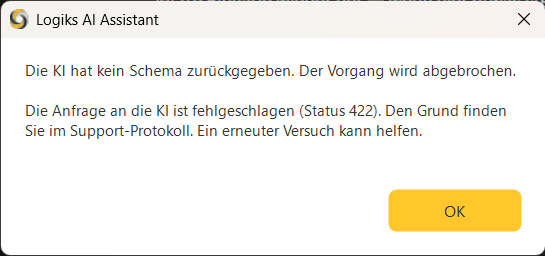
If no schema comes back at all, the add-in reports "AI did not return a schema. Aborting." If it also says "The request to the AI failed (status 422)", this is currently not caused by your instruction but by the schema proposal itself. Enter the columns in Output columns / schema yourself, separated by semicolons, and start again – the extraction then runs without a proposal.
The insertion-mode question
If the active sheet already holds anything, you get: "Worksheet contains existing content. Choose insertion mode for fact table:" with two answers.
- Overwrite at A1 – the table starts at A1. The area it will occupy is cleared first: values and formatting, across the full width of the new table and its full height including the summary block. Whatever was there is gone afterwards. The rest of the sheet is untouched – but everything inside that rectangle is lost.
- Append below existing – the table starts two rows below the last used row. Nothing is deleted. This is the safe answer.
If you close the window or cancel, nothing happens: you get a message saying the operation was cancelled.
Neither can be undone. Excel's normal undo does not reliably cover add-in insertions. When in doubt: cancel, create an empty sheet, start again.
What ends up in the table
At the top, the header row with the column names from the schema, in bold. Below it the data rows – one per record found, so a file with several invoices yields several rows; the "File" column names the source file. Below that, separated by a blank line, a small block with Directory, Files processed and – if there were any – Files failed together with the filenames.
Column widths are adjusted automatically.
When nothing or too little comes out
- "No data extracted." – none of the files contained anything matching the schema. Often these are scanned PDFs with no text layer: try again with Use OCR for PDFs.
- Individual files missing from the table – they are listed in the summary block as failed. The run does not abort because of them.
- A column empty everywhere – that detail is not in the documents in that form, or it is named differently in the schema than it appears in them.
A practical routine
- Create a new, empty worksheet and switch to it.
- Start with one file and check that the schema and the values are right.
- Only then run the whole folder.
Was this helpful?
Still need help? Ask the team