Where to find Logiks AI Assistant on your ribbon
English version follows in the English pass.
Written By Logiks Solutions
Last updated About 1 month ago
There is no tab of its own
Logiks AI Assistant does not add its own ribbon tab. Instead it puts its buttons into a tab you have open anyway. So if you are looking for a tab named after the product, you will not find one – the group carries that name, not the tab.
In Word and Excel
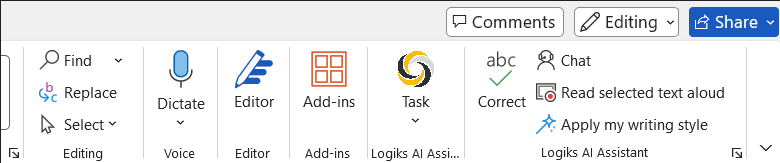
Home tab ▸ Logiks AI Assistant group
The group sits on the right, immediately after the "Names" group. The name appears there twice, side by side, because there are two groups:
The first contains only the Task menu. Every feature lives in there.
The second holds quick-access buttons – individual buttons for the things you need often, so you do not have to open a menu for them.
In Outlook
Outlook has a different ribbon depending on the window, so the group sits in three places there:
in the main window with the message list,
in the window where you write a new message,
and in a message opened on its own.
In all three the group is again called Logiks AI Assistant and contains the same Task menu. Which entries are usable depends on the window: drafting a reply only makes sense where a message is open.

You cannot see the group
There are two common reasons, and they look different:
You can see the group, but only one large Sign In button. Then you are not signed in. While you are signed out, the Task menu is not greyed out but completely hidden – and so are the quick-access buttons. So you cannot see what you are missing.
You see nothing of Logiks AI Assistant at all. Then the add-in is not loaded. That happens when Office has disabled it after a crash, or when the installation is incomplete.
When the ribbon is too narrow
Office collapses groups when the window gets narrow: the group becomes a single button with the group name, which you have to click to reach the entries. So if the buttons you are used to have suddenly disappeared, widen the window before you suspect a fault.
Related articles
You have to be signed in
What your administrator decides and what you can set
Was this helpful?
Still need help? Ask the team